
How do I brand my proposals and build them by hand or with MONA AI?
Add your logo and font files in Settings, then Brand. Build a proposal by hand from the schedule, or ask MONA to draft it. Group items into one price and choose what your client sees.
Quick answer: set your brand once in Settings, then Brand: upload your logo, upload your font files and add your colors. Every proposal PDF then carries them. Build a proposal by hand from a project’s Proposals tab, or pick Ask MONA and describe it in plain words. Either way you can group items into one client price and choose exactly what your client sees.
This article covers the look of a proposal and the two ways to build one. For sending, signing and tracking, see How do I send a design proposal for my client to sign in MONA?.
Who can use this
- Every seat can build proposals and use Ask MONA.
- Owners and admins can edit Settings, then Brand, and the studio defaults in Settings, then Finance.
How do I put my logo and fonts on proposals?
- Click Settings, then Brand.
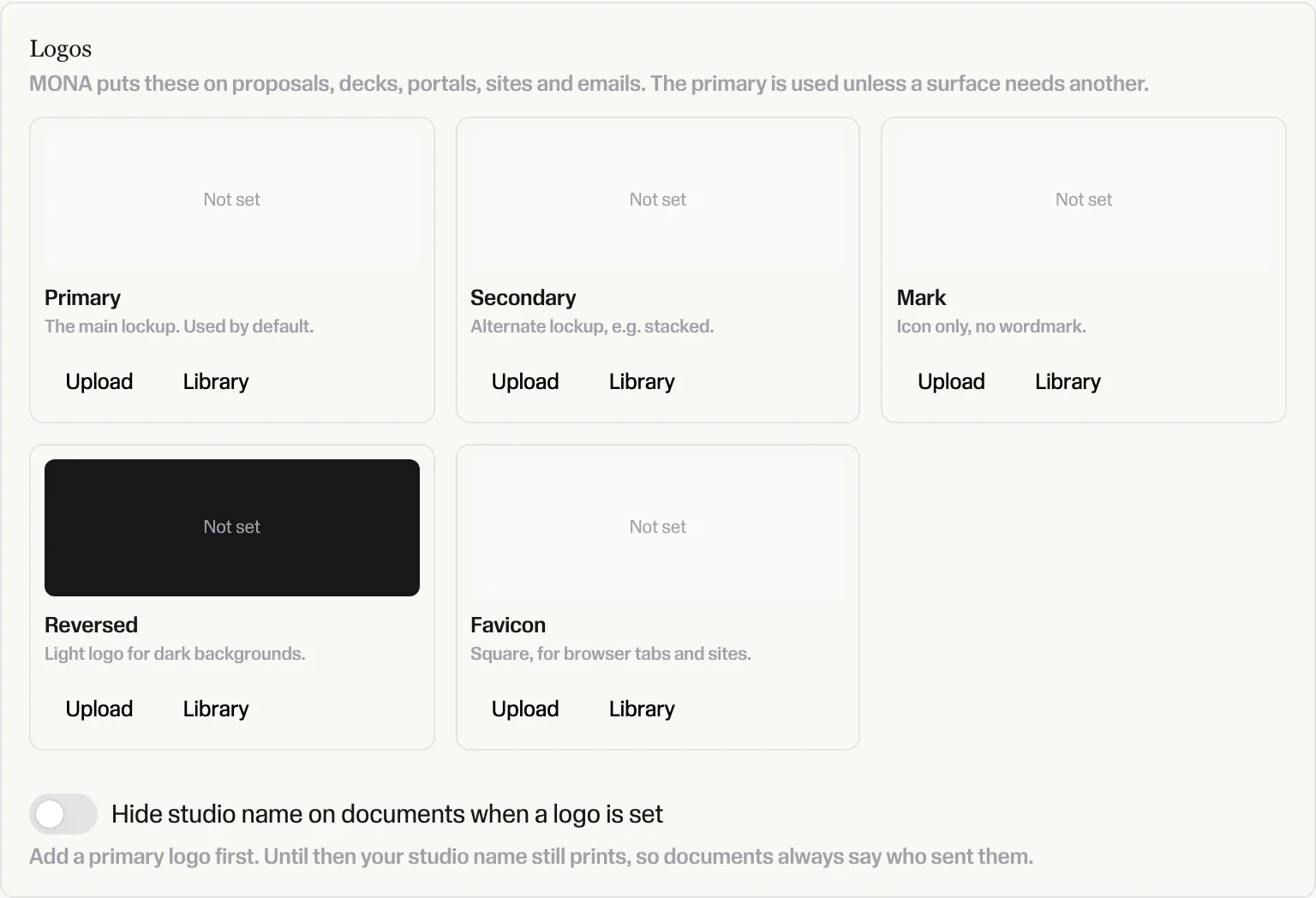
- Under Logos, click Upload on the Primary slot and pick a PNG, JPG or WebP file. A transparent PNG looks cleanest.
- If your logo already spells out your studio name, turn on Hide studio name on documents when a logo is set, so the header shows only the logo.
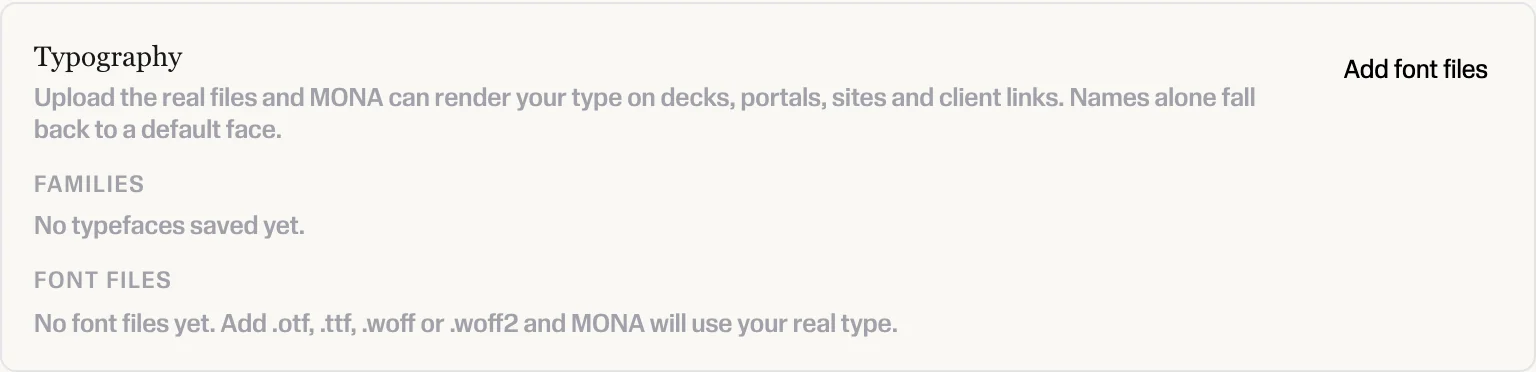
- Under Typography, click Add font files and upload the real files (.otf, .ttf, .woff or .woff2) for both your heading font and your body font. If a family name shows in a plain default face, its file did not load.
- Under Colors, type each hex value and click Add colour, then Save. The first color is your primary color and is the accent on proposal PDFs.
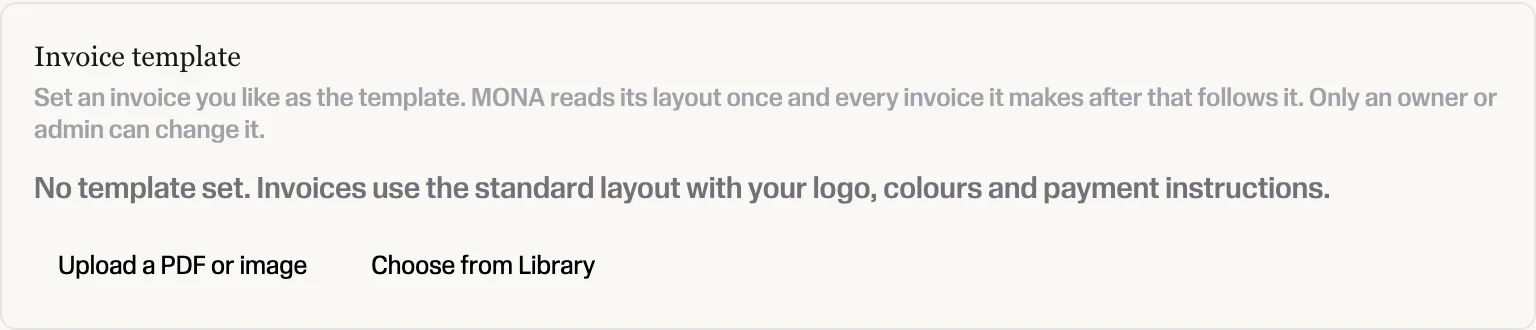
- Optional: under Invoice template, upload a PDF or image of an invoice or proposal whose layout you like. MONA reads it once, and proposals print on the same designed sheet as your invoices.
Then set two studio defaults in Settings, then Finance:
- Proposal heading: the word at the top of every proposal, such as "Furnishings Proposal". You can also change Document heading on one draft.
- Invoice layout, then Page: Landscape or Portrait. Proposals follow it.
Your client gets the branded PDF from the Download PDF link on their proposal page, and Save as PDF files the same PDF in your Library. For everything else your brand touches, see How do I add my logo, colors, and fonts to MONA documents?.
How do I build a proposal by hand?
- Open the project and click the Proposals tab, then New proposal. (From the Proposals page in the sidebar, New proposal asks Who is this for? first.)
- Under Start from, pick From schedule to choose lines, rooms or the whole project, or Blank. Set a Default markup % and a Deposit (Percent or Fixed) if you take one.
- Add more lines with Add from schedule, Add from Products, Add service, Add from inventory or Add line. Lines from your FF&E schedule stay in sync with their schedule rows.
- Click any cost, markup or quantity on a draft line to change it.
- Fill in Quote #, Description and Terms (or Insert saved terms).
- Switch between Editor and Document at the top to see the proposal as a page while you work.
How do I group items so my client sees one price?
Use a group when you track parts separately but sell them as one piece, like a pillow made of fabric, trim and down fill.
- On a draft proposal, tick the lines you want to combine. You need two or more.
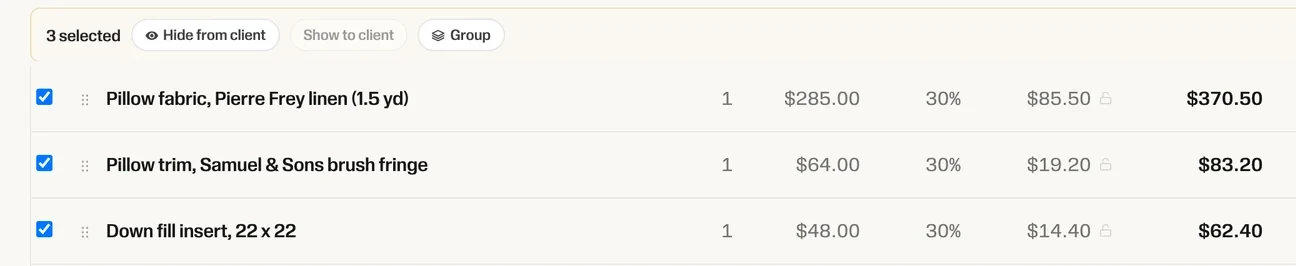
- In the bar that appears, click Group, type a name such as "Lumbar pillow" and press Enter.
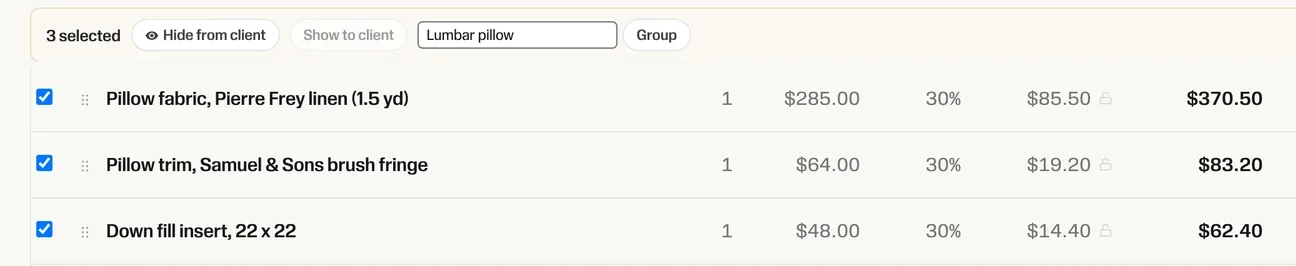
- In Client sees, choose how the group shows:
- One line: one line, one price, one photo. The parts are not listed.
- Group total + item photos, no item prices: one price, with a photo of each part. This is the default.
- Itemized with prices: every part with its own price, under the group total.
- The group row shows Group of and the count, plus your cost, price and profit, which only your studio sees. Click Ungroup to split it again.
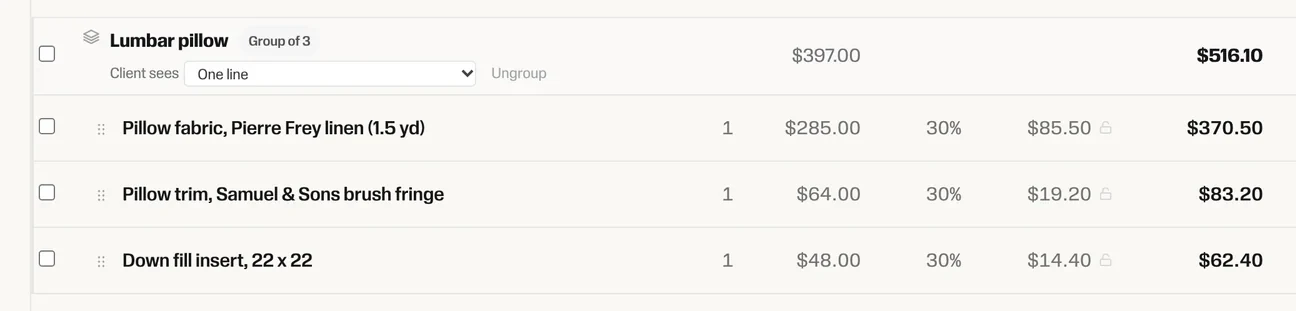
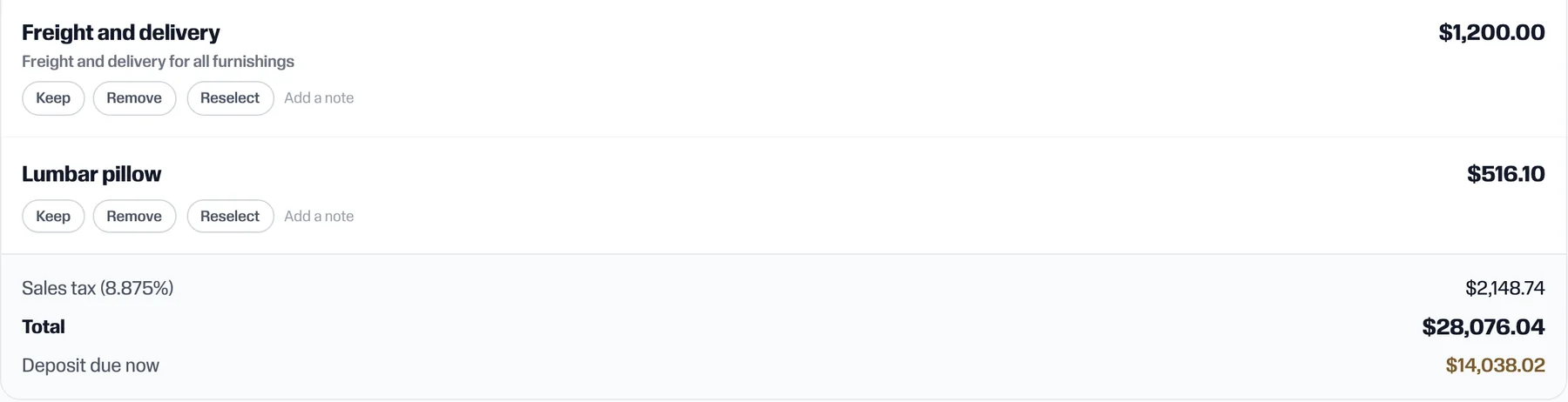
With One line picked, your client sees a single pillow at a single price:
On the PDF, a grouped line prints "Includes:" with the part names and no part prices. To offer alternatives instead, such as two sofas the client chooses between, click + Make an option on each line and give them the same option set name.
What can I show or hide from my client?
Switches above the lines, on each draft:

- Show item photos to client
- Show savings vs retail: adds "You save" and the retail value.
- Show tax and freight on each line: turn it off to show tax and freight once at the bottom. The PDF then drops the per-line tax and freight columns and keeps one Price column.
- Print care instructions
- Group by room: room headings with room subtotals. Off gives one flat list.
Studio defaults, in Settings, then Finance:
- What clients see: Show brand and vendor to clients and Generic product names on proposals.
- Default client price: how client prices are set, plus Show tax and freight on each line of new proposals and the retail savings default.
Cost, markup and profit never reach your client. In the builder they are marked "Profit is visible to your studio only."
How do I build a proposal with MONA AI?
- Open the project, click the Proposals tab, then New proposal.
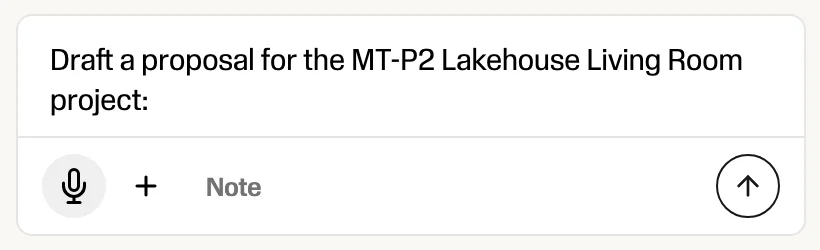
- Under Start from, pick Ask MONA ("Describe it and MONA drafts it") and click Open Ask MONA. The chat opens with "Draft a proposal for the" project name typed in. Nothing is sent until you press send. You can also ask from any MONA chat, by text or by phone.
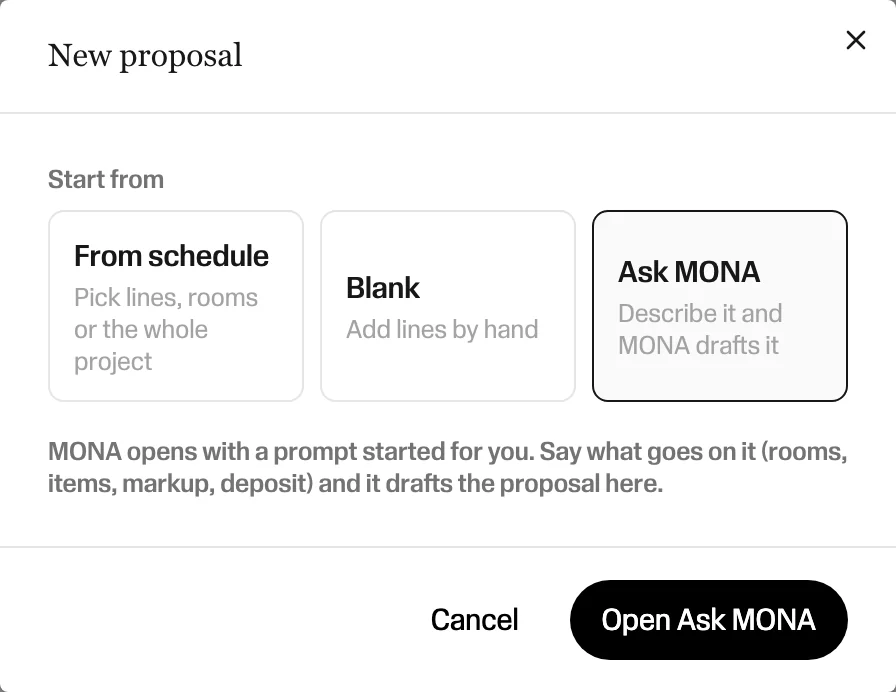
- Finish the sentence and send. For example:
- "Draft a proposal from the Living Room and Primary Bedroom, 35% markup, 50% deposit."
- "Group the pillow fabric, trim and down fill as Lumbar pillow and show it to the client as one line."
- "Turn off tax and freight on each line, hide item photos, and set the heading to Furnishings Proposal."
- "Save a PDF of the proposal."
- MONA builds and edits the same draft you see in the Proposals tab, so you can switch between asking and clicking at any point.
- When it looks right, click Preview as client. Send it yourself with Send to client, or tell MONA "send it to the client". MONA only sends when your message clearly says to; otherwise it asks with an Approve or Deny card.
How do I check it before sending?
- Preview as client opens the exact page your client will see in a new tab. Nothing you click there is saved.
- Save as PDF files the branded PDF in your Library, the same one your client downloads.
Then follow sending and signing.
What it does not do (yet)
- The client’s web page uses MONA’s standard layout. It shows the heading, title, your name and the items, without your logo or fonts. The Download PDF on that page is fully branded.
- No switch to hide tax or freight entirely. When they are not zero they show, either per line or once at the bottom.
- No per-line price hiding outside a group. Group the lines and pick One line instead.
- One brand per studio.
Want a hand?
Send us a proposal you like from another tool and book a 30-minute setup call with the founder at calendly.com/mona-justin/30min. We will set up your brand and build your first proposal with you.
Related articles
- How do I send a design proposal for my client to sign in MONA?
- How do I add my logo, colors, and fonts to MONA documents?
- Trade pricing and markup
- FF&E schedules
- Ask MONA, the AI agent
- Switch from Houzz Pro
Frequently asked questions
Where does my logo show on a proposal?
In the header of the proposal PDF: the Download PDF your client opens from their link, and the PDF you file with Save as PDF. Upload it once under Settings, then Brand, then Logos, on the Primary slot.
Why are my proposal headings not in my brand font?
The font is probably named but has no file behind it. Go to Settings, then Brand, then Typography, click Add font files and upload the .otf, .ttf, .woff or .woff2 files for that font. Fonts with no file fall back to a default typeface.
Can I group several items so my client only sees one price?
Yes. Tick the lines, click Group and name it, for example a pillow made of fabric, trim and down fill. In Client sees, pick One line for one line with one price, or Group total + item photos, no item prices. You still track every item and its cost.
Does my client ever see my markup or cost?
No. Cost, markup and profit are only visible to your studio. Your client sees the client price on each line and the totals.
Can I hide tax and shipping on each line?
Yes. Turn off Show tax and freight on each line on the proposal, or for every new proposal in Settings, then Finance. Tax and freight then show once at the bottom, and the PDF keeps a single Price column.
Can MONA AI build the proposal for me?
Yes. Click New proposal on a project and pick Ask MONA, or ask in any MONA chat. Tell it which rooms or items, your markup and deposit, and it drafts the proposal. You can then ask it to group items or change what the client sees.
Will MONA send a proposal to my client without asking me?
No. MONA only sends when your own message clearly says to send it. Otherwise it asks with an Approve or Deny card. Drafting, previewing and saving a PDF never send anything.
Can I make my MONA proposals match the layout I used in Houzz?
Upload a PDF of a Houzz proposal or invoice you like under Settings, then Brand, then Invoice template. MONA reads the layout once and your proposal PDFs print on that designed sheet with your logo and fonts.